
Database Version: v2026.04.27 (Latest Refresh: 2026)
🎮 PC Bottleneck Calculator
The free bottleneck checker and calculator for gamers
Want to know How we Calculate our Results?
Ever wonder why your high-end GPU still delivers low FPS? Or why upgrading one part didn’t change anything? That’s a classic PC bottleneck.
This free Bottleneck Calculator instantly shows which part of your system (CPU, GPU, RAM, or storage) is limiting real-world gaming performance and how to actually fix it personalized to your needs.
No theory. No guessing. Just clear results and smart upgrade advice.
To learn more about how our engine weights single-core IPC and resolution scaling modifiers, read how we calculate bottleneck results.
👉 Click the button, enter your specs, and see the bottleneck in seconds.
Some key features make it great
Everything you need to check bottleneck of your PC

Instant Bottleneck Detection
Calculated against real-world benchmark averages, architectural throughput, and resolution scaling models

Component-Level Analysis
Evaluates exact CPU, GPU, RAM, and Storage configurations.

100% Free & Secured
Web-based tool requiring zero sign-ins, zero software downloads, and zero paywalls.
Personalized Suggestions
Automated suggestions tailored to your specific system inputs and target resolution.
How to Read Your Custom Performance Report
Our tool avoids giving you a single, vague number. Instead, your diagnostic dashboard updates into six clear, scannable panels:
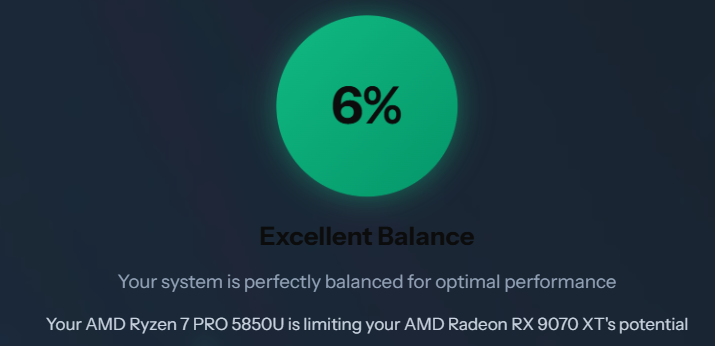
1. Overall Score
- What it is: The high-level summary showing the total performance variance between your parts.
- How to read it: A lower percentage (0-10%) indicates highly optimized hardware harmony; a higher percentage (30%+) flags a clear processing bottleneck
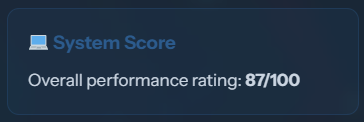
2. System Score
- What it is: A comprehensive evaluation of your PC’s raw power tier and processing capability as a whole.
- How to read it: This tells you where your machine ranks in the current global hardware landscape and how future-proof it is for upcoming software.
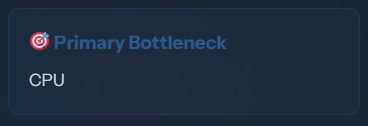
3. Primary Bottleneck
- What it is: The core diagnostic panel that instantly isolates the specific hardware component hitting its operational cap first.
- How to read it: It will explicitly tell you if your system configuration is running CPU-Bound or GPU-Bound, taking all the guesswork out of troubleshooting.
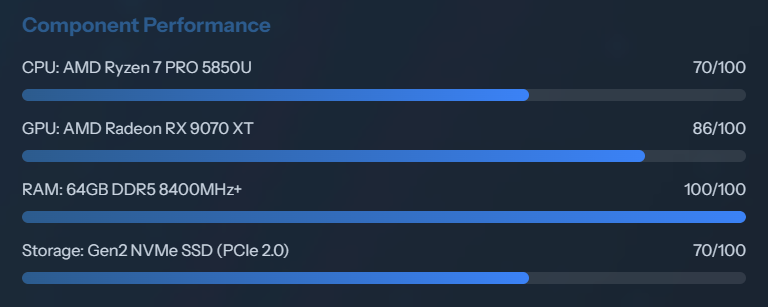
4. Component Performance
- What it is: A detailed look at how your specific CPU and GPU models are running relative to their maximum design limits.
- How to read it: Shows you exactly how much horsepower each individual part is contributing, pointing out which one has extra breathing room.
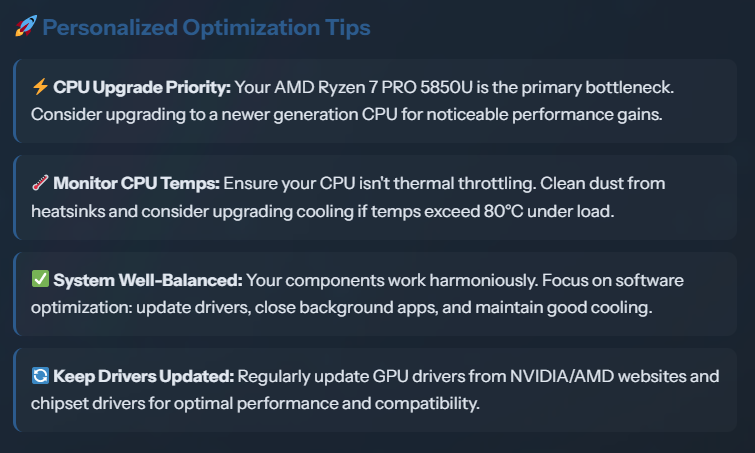
5. Personalized Optimization Tips
- What it is: An automated optimization checklist tailored specifically to your exact hardware combination.
- How to read it: Delivers direct, free action steps—like software configurations, driver updates, or in-game preset tweaks—to balance your load.
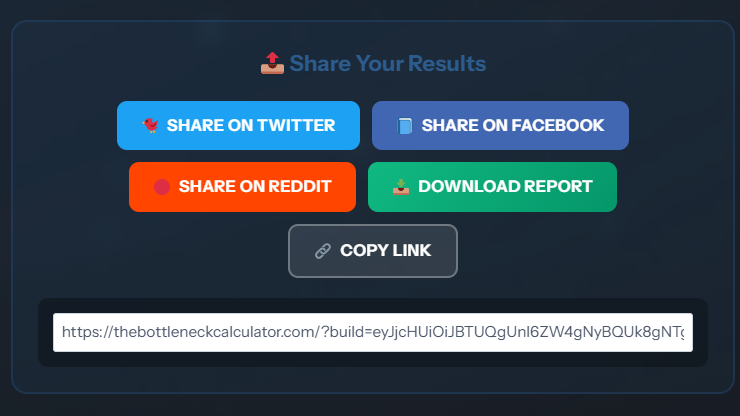
6. Share Your Results
- What it is: A feature that creates a clean, dedicated link to your unique hardware diagnostic blueprint.
- How to use it: Instantly share your calculation layout on tech forums like Reddit or Discord when asking the community for building or upgrade advice.
Common Component Utilization Scenarios
When monitoring your computer’s real-time resource usage charts via software, your components will interact in one of several distinct processing configurations:
CPU Usage:
GPU Usage:
Scenario 1: High CPU & Low GPU Utilization (Processor-Bound State)🔴
- Technical State: Severe CPU Bottleneck (Processor-Bound)
- Under the Hood: Your CPU cores are flat-out running background logic and asset streaming, leaving your graphics card idling while waiting for instruction sets.
- Result: Capped average frame rates, prominent input lag, and choppy micro-stutters during intense action.
CPU Usage:
GPU Usage:
Scenario 2: Low CPU & High GPU Utilization (Optimal Graphics-Bound Gaming) 🟢
- Technical State: GPU Bottleneck (Graphics-Bound / Optimal Gaming State)
- Under the Hood: Your graphics card is working at peak efficiency, pushing out textures and pixels as fast as its architecture allows, while your CPU easily feeds it data.
- Result: Stable, fluid, and predictable frame delivery. You are extracting the maximum performance out of your graphics investment.
CPU Usage:
GPU Usage:
Scenario 3: 100% CPU & 100% GPU Usage (Maximum Hardware Limit) 🟡
- Technical State: Maximum System Cap (Total Hardware Limit)
- Under the Hood: Both components are pinned to their absolute engineering limits simultaneously. This occurs in highly optimized game engines built to extract maximum system power.
- Result: Maximum potential frame rates for your system, but your PC will run hot. There is zero background processing headroom left for other applications.
Why Choose Us? How We Compare
Many legacy calculators found on search engines run on outdated component metrics or force users to install background tracking utilities to check their specifications. Our platform is engineered differently:
Core Capability | Traditional Online Calculators | Our Diagnostic Platform |
|---|---|---|
System Privacy & Security | Risky. Forces users to download insecure desktop applications (.exe) to scan their active hardware profiles. | 100% Web-Based. Requires no local software tracking, safeguarding your private files and operating system data. |
Diagnostic Context | Vague. Displays a solitary, non-contextual percentage value that leaves you guessing how to handle it | 6-Tier Detailed Report. Breaks down your result screen into distinct component, utility, and target insights. |
Platform Capability Restrictions:
📊 Note on Platform Capabilities: This bottleneck calculator is engineered specifically with Desktop Gaming PCs in mind. While you can utilize it to analyze specialized workstations or systems with rare components, the baseline models specialize in gaming ecosystem pipelines. Furthermore, this tool does not support consoles like the PS5 or Xbox Series X, as closed console architectures utilize fixed, unified memory configurations that do not process data like modular desktop computers.
Key Considerations When Evaluating Bottleneck Calculations
Hardware calculations are meant to serve as an expert engineering guide rather than an absolute, unyielding rule. To get the most accurate context from your calculation report, keep these considerations in mind:
- Scores are Relative, Not Absolute Drops: A “15% bottleneck” doesn’t mean your machine runs 15% slower across the board. It simply means that under peak operational loads, one component has roughly 15% more theoretical processing headroom than the other.
- No Real System Runs at 0% Continuously: A variance anywhere between 0% and 12% is considered a perfectly balanced machine. If your diagnostic result shows a minor variance, check our analysis on whether a 5% bottleneck is bad for gaming to understand why it won’t impact real-world frame rates.
- Keep Tracking Regular: We recommend running a system calculation layout whenever you experience persistent in-game frame drops, when preparing to upgrade an existing component, when downloading next-generation software applications, or once a year to verify overall system efficiency.
Best Practices for Avoiding Bottlenecks

Matching CPU & GPU Performance
When building your setup, make sure to pick hardware from matching performance tiers. For generational analysis on high-end hardware, consult our RTX 50-Series Bottleneck Guide
or review our breakdown of the RTX 5080 vs RTX 4080 Super
. For budget-focused 1080p builds, see our Ryzen 5 5600 + RTX 5060 bottleneck guide.
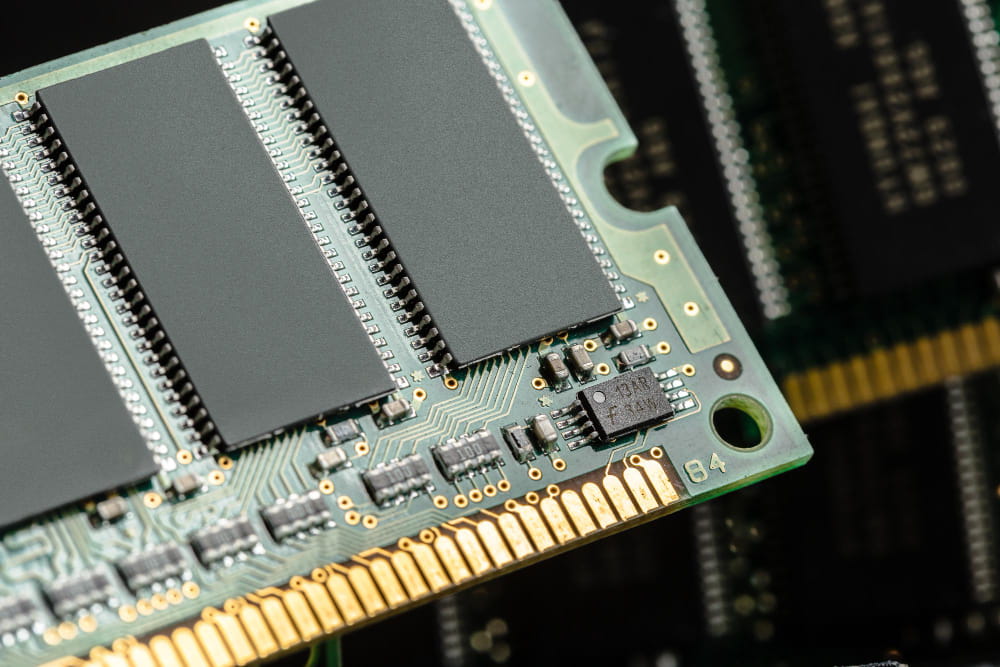
Choosing the Right Amount of RAM
Pair your system with adequate capacity and clock speeds to ensure data pipelines stay clear. Modern platforms thrive with at least 16GB to 32GB of low-latency DDR5 configurations.
Picking Storage for Speed & Capacity
Never compromise your storage pipeline. Choose high-tier solid-state storage to match your CPU’s speed capacities

Selecting a Display That Matches Hardware Power
For high-end component setups, leverage advanced displays such as 1440p or 4K monitors with a 144Hz+ refresh rate. For budget configurations, matching them with a clean 1080p 60Hz–75Hz monitor avoids exposing processing gaps.
Example Balanced Blueprints:
- Balanced Gaming Build: AMD Ryzen 5 7600X, NVIDIA RTX 4070, 16GB DDR5 RAM, 1TB NVMe SSD, paired with a 1080p 144Hz monitor.
- Balanced Workstation Build: Intel Core Ultra 5 245K, NVIDIA RTX 4070, 32GB DDR5 RAM, 2TB NVMe SSD, paired with a 1440p 144Hz display panel.
Featured Hardware Bottleneck Analyses
Explore our deep-dive architectural analyses and benchmark evaluations for popular hardware pairings:
- NVIDIA RTX 50-Series Bottleneck Guide: CPU Requirements for Blackwell GPUs
- RTX 5080 vs RTX 4080 Super: Efficiency, GDDR7 Bandwidth & Performance Scaling
- Ryzen 5 5600 + RTX 5060: Budget 1080p Bottleneck Analysis
- 5% Bottleneck Explained: What Minor System Variances Mean for Gaming
- Technical Methodology: How Our Diagnostic Algorithm Models IPC & Resolution Scaling