
Have you ever updated a game, rebooted your PC with high expectations, and then realized something feels off because FPS is lower, stuttering appears, or the game crashes for no obvious reason? If you are searching for how to update GPU driver properly in 2026 without risking performance or stability, you are exactly where you need to be. This guide is designed to remove confusion, explain what actually matters, and help you update drivers in a way that genuinely improves your system.
Updating GPU drivers is no longer just about clicking an update button and hoping for the best. Modern drivers influence how games render frames, how CPUs and GPUs communicate, and how efficiently your hardware handles demanding workloads. When done correctly, driver updates can quietly unlock smoother gameplay and more stable performance without costing you anything.
Why Updating GPU Drivers Matters More Than Ever
Games released in recent years rely heavily on driver-level optimizations to function as intended, especially when new engines or rendering techniques are introduced. Features such as DLSS, FSR, frame generation, and ray tracing improvements are often refined inside driver updates rather than game patches.
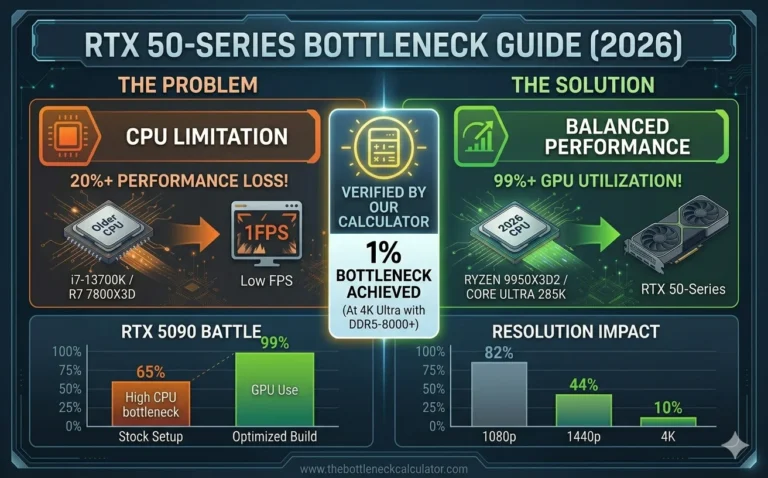
Another important factor is system stability and security, because outdated drivers can contain unresolved bugs or vulnerabilities that impact both performance and safety. Updated drivers also improve CPU and GPU scheduling, which directly affects how balanced your system feels, particularly if you have ever checked performance using a bottleneck calculator and noticed inconsistent results.
Common Symptoms of Outdated GPU Drivers
One of the earliest signs is a sudden drop in performance after a game update, even though your hardware has not changed at all. This usually shows up as stuttering, uneven frame pacing, or brief freezes that make gameplay feel unstable.
You may also notice that your GPU never reaches full usage, or that games like Fortnite, Warzone, MW2, or MW3 crash randomly without helpful error messages. In many cases, bottleneck tools begin reporting imbalance not because of hardware limitations, but because the driver can no longer communicate efficiently with the game engine.
Quick Reference Table: Symptoms vs Possible Causes
| Symptom | Possible Cause | Suggested Action |
|---|---|---|
| FPS drops | Outdated GPU driver | Update GPU driver manually or via official software |
| Stuttering | Driver optimization missing | Clean install recommended |
| Crashes | Driver incompatibility | Roll back or update driver from manufacturer |
| Low GPU usage | Driver scheduling issues | Check with bottleneck calculator |
What to Check Before Updating GPU Drivers
Before changing anything, it is important to check your currently installed driver version so you can return to it if needed. This simple step prevents panic if performance drops after an update.
Creating a Windows restore point adds an extra layer of safety and takes only a minute to set up. Make sure your internet connection is stable, your system is plugged into reliable power, and laptop users should be aware that some manufacturers recommend OEM drivers for maximum stability.
How to Update GPU Drivers Safely in 2026
There are several ways to update GPU drivers, and the best choice depends on how much control you want and how sensitive your system is to changes. Understanding these methods helps you decide which one suits your situation.
Automatic Driver Updates Using Official Software
GPU control applications like NVIDIA App, AMD Adrenalin, and Intel Arc Control are built for convenience and reliability. They automatically detect your hardware and install compatible drivers with minimal user input.
This approach works well for most users, but it can sometimes lag behind performance-focused releases. If you mainly want stability and ease, automatic updates are usually sufficient.
Manual Driver Installation for Best Results
Manual installation gives you full control over which driver version you install and how clean the process is. Downloading drivers directly from the official NVIDIA, AMD, or Intel websites ensures compatibility with modern graphics technologies like DirectX and Vulkan.
This method is especially useful when troubleshooting FPS drops, crashes, or inconsistent performance because it allows you to remove old driver remnants. If you truly want to understand how to update GPU driver without hidden conflicts, manual installation is often the most reliable option.
Using Windows Update and Why It Is Limited
Windows Update can install GPU drivers automatically, but these drivers are usually optimized for basic display stability rather than gaming or creative workloads. They often lack the latest performance improvements.
Using Windows Update as your primary driver source can silently limit GPU performance, which is why it should be treated as a fallback option rather than a long-term solution.
Clean Install vs Express Install Explained
A clean install removes old driver files, cached profiles, and leftover settings that may interfere with performance. This often helps resolve stuttering, crashes, and strange behavior that builds up over time.
Express install is faster and works well if your system is already stable and you are updating within the same driver family. When performance issues exist, clean installation usually delivers better results.
How Driver Updates Influence Gaming Performance
Driver updates frequently improve performance in newly released games through targeted optimizations. These improvements may not double your FPS, but they can significantly improve stability and smoothness.
Frame time consistency is often the biggest improvement, as better CPU and GPU coordination reduces spikes that cause visible stutter. Driver changes can also shift system balance, which is why checking performance using a bottleneck calculator on your main system tool page helps confirm real improvements.
Fixing Issues After Updating GPU Drivers
If you experience crashes or black screens after an update, restarting the system and verifying driver installation is the first step. Rolling back to a previously stable driver often resolves serious issues quickly.
Lower FPS after updating is commonly caused by reset settings rather than driver faults. Reviewing power modes, shader cache options, and in-game graphics settings usually restores performance.
Conclusion
GPU drivers are not magic, but correct updates can unlock free performance and improved stability. By following safe update practices, performing clean installations when needed, and staying informed about updates, how to update GPU driver becomes a straightforward and highly beneficial maintenance task in 2026.