
When you’re building or upgrading a PC, it’s almost impossible to avoid bottleneck calculators. You enter your CPU and GPU, hit calculate… and suddenly see a percentage that looks alarming — even though your PC feels smooth in real life.
That exact confusion is why people keep asking: are bottlenck calulators accurate?
This guide is written for real users — gamers, PC enthusiasts, and builders — who want clarity, not fear. We’ll keep the structure simple, go a little deeper where it matters, and explain everything using real-world scenarios so you can actually make better decisions.

Why Bottleneck Calculator Accuracy Is Debated
Have you ever entered your CPU and GPU into a bottleneck calculator and gotten a scary percentage — despite your PC performing perfectly fine? You’re not alone. This happens because bottleneck calculators simplify a very complex system into a single number.
They’re not testing your actual PC. They’re estimating performance using averages, assumptions, and predefined formulas. That’s why results often feel disconnected from what you experience in games or work.
In this guide, we’ll break everything down in a beginner-friendly way, so you understand when bottleneck calculators make sense, when they don’t, and how to use them without panic.
Before judging accuracy, let’s first understand what a bottleneck really is.
/ta
What Is a Bottleneck in a Computing System?
A bottleneck is any component that limits your system’s performance in a specific scenario. Your PC may be powerful overall, but one slower part can temporarily hold everything else back.
CPU Bottleneck vs GPU Bottleneck
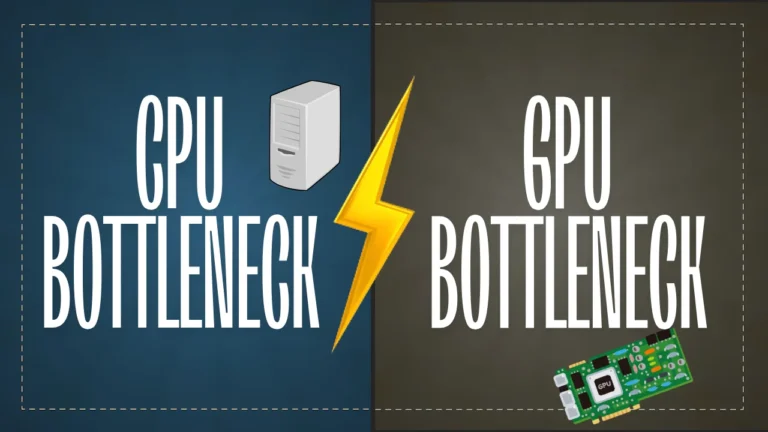
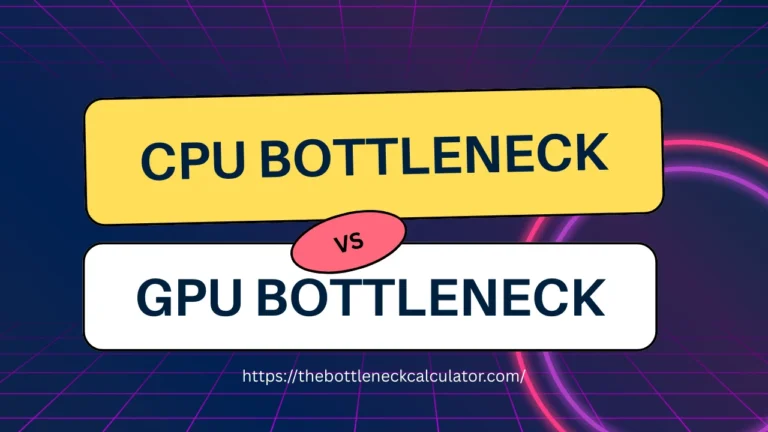
A CPU bottleneck happens when the processor can’t keep up with the GPU. The graphics card ends up waiting for the CPU to send instructions. This is common in:
- Strategy and simulation games
- Large open-world titles
- High-FPS competitive gaming
- Heavy multitasking in the background
A GPU bottleneck happens when the graphics card is maxed out while the CPU still has room to work. This is common in:
- Graphically demanding AAA games
- High resolutions like 1440p and 4K
- Ultra graphics settings
Neither situation is inherently bad. In fact, every PC has some form of bottleneck. The goal is balance — not perfection.
Other System Bottlenecks
CPU and GPU aren’t the only parts that matter. Many bottleneck calculators ignore:
- RAM speed and capacity
- Single vs dual-channel memory
- Storage type (HDD vs SATA SSD vs NVMe)
- Thermal throttling
- Background applications
These factors can easily affect real-world performance — even if a calculator says your CPU and GPU pairing is “perfect.”
What Is a Bottleneck Calculator and What Does It Claim to Do?
A bottleneck calculator is designed to estimate whether one component might limit another. It usually compares CPU and GPU performance scores and outputs a percentage that represents a theoretical imbalance.
How a Bottleneck Calculator Works
Most tools ask for basic inputs:
- CPU model
- GPU model
- Resolution
- Intended workload (gaming or productivity)
They then compare benchmark-based performance data using predefined formulas and generate a result.
What Data Bottleneck Calculators Use
Most calculators rely on:
- Synthetic benchmark scores
- Average CPU and GPU rankings
- Manufacturer specifications
- Assumed workloads
They do not analyze your game engine, cooling quality, RAM speed, storage performance, or background tasks. That’s why they should never be used alone.
What Bottleneck Percentages Really Mean
A bottleneck percentage is not a measure of damage or lost FPS. A “20% bottleneck” doesn’t mean you’re losing 20% performance.
It simply means that, under the calculator’s assumptions, one component may limit the other in certain scenarios. Many users misunderstand this and treat the number as far more precise than it actually is.
Factors Involved in the Accuracy of a Bottleneck Calculator
It’s important to understand that calculators don’t check your actual PC. They estimate results based on assumptions — and changing those assumptions can drastically change the outcome.
Generalized Algorithms
Most calculators use generalized formulas that attempt to cover thousands of hardware combinations. Because of this, different calculators often give different results for the same system.
Accuracy for Gaming vs Productivity Workloads
Gaming and productivity stress different components:
- Gaming often leans toward GPU usage
- Productivity tasks like video editing or compiling code rely more on CPU and memory
Many calculators assume a generic workload, which rarely reflects how people actually use their PCs.
Software Optimization and Update Frequency
Drivers, game patches, and OS updates can significantly change performance. Calculators using outdated data may report bottlenecks that no longer exist.
Component Variability Between Similar Hardware
Even identical CPU and GPU models can behave differently due to:
- Cooling quality
- Power limits
- Factory overclocks
- Silicon quality
These differences are invisible to most calculators.
Other System Bottlenecks Calculators Ignore
RAM configuration, storage speed, thermals, and background tasks are commonly ignored — yet they often explain why real performance doesn’t match calculator results.
How Accuracy Is Determined in Bottleneck Calculators
Bottleneck calculators determine accuracy by comparing static performance data under predefined conditions — not by testing your system in real time.
Static Numbers vs Real-World Context
Static scores can’t reflect:
- Background apps
- Specific game engines
- Thermal behavior
- Resolution scaling
This is why calculators should be paired with live monitoring.
Task-Specific Performance Differences
A system that appears CPU-limited in one game may be perfectly balanced in another. Calculators that assume a single workload often misrepresent this reality.
Resolution and Graphics Settings Impact
Resolution changes everything:
- Lower resolutions stress the CPU more
- Higher resolutions shift load to the GPU
Calculators that don’t factor this properly lose accuracy quickly.
Overclocking and System Optimization Effects
Overclocking, undervolting, and tuning can noticeably change performance — yet most calculators assume stock behavior.
Why Bottleneck Calculator Results Aren’t the Whole Story
Two PCs with identical specs can perform very differently. Cooling, drivers, background tasks, and even Windows settings can all change results.
That’s why calculators should be treated as estimates — not final judgments.
Are Bottleneck Calculators Accurate for Gaming?
They’re useful for rough planning, but unreliable on their own.
Why Gamers Use Bottleneck Calculators
- Quick compatibility checks
- Avoiding extreme mismatches
- Early upgrade planning
Accuracy at Different Resolutions and Settings
Higher resolutions reduce CPU bottlenecks and increase GPU load — something calculators often oversimplify.
CPU-Bound vs GPU-Bound Games
Different genres behave very differently. Calculators rarely distinguish this well.
Are Bottleneck Calculators Accurate for Productivity and Work?
For rendering, video editing, and professional workloads, calculators are even less reliable. CPU cores, memory bandwidth, and storage often matter more than GPU balance.
Common Misconceptions About Bottleneck Calculators
- One percentage applies to everything
- Lower bottleneck always means better performance
- Calculators replace benchmarks
- Bottlenecks damage hardware
All of these are false.
When Bottleneck Calculators Are Correct and Reliable
They work best for:
- Early-stage PC planning
- Rough compatibility checks
- Entry-level and mid-range systems
Bottleneck Calculator Mistakes You Should Avoid
- Blindly trusting percentages
- Ignoring resolution and settings
- Comparing laptop and desktop hardware
- Using outdated tools
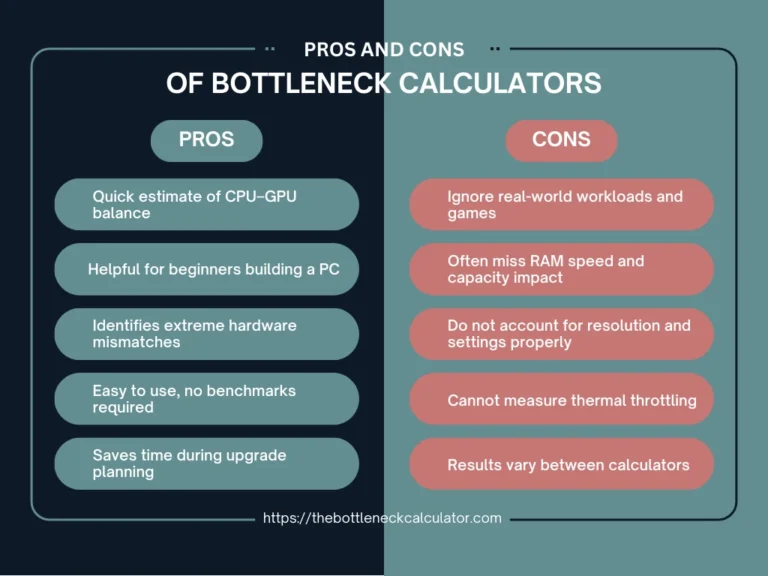
Pros and Cons of Using a Bottleneck Calculator
Advantages of Bottleneck Calculators
They’re fast, simple, and useful for quick planning.
Limitations and Risks
They rely on assumptions and averages — not your real PC.
Real-World Testing vs Bottleneck Calculators
Benchmarks and live monitoring show what calculators can’t.
Better Ways to Check Your System’s Performance
- MSI Afterburner and HWInfo for live monitoring
- 3DMark and Cinebench for standardized benchmarks
- Trusted YouTube benchmarks and reviews
How to Use a Bottleneck Calculator the Right Way
Use it as a guide — then verify with real data.
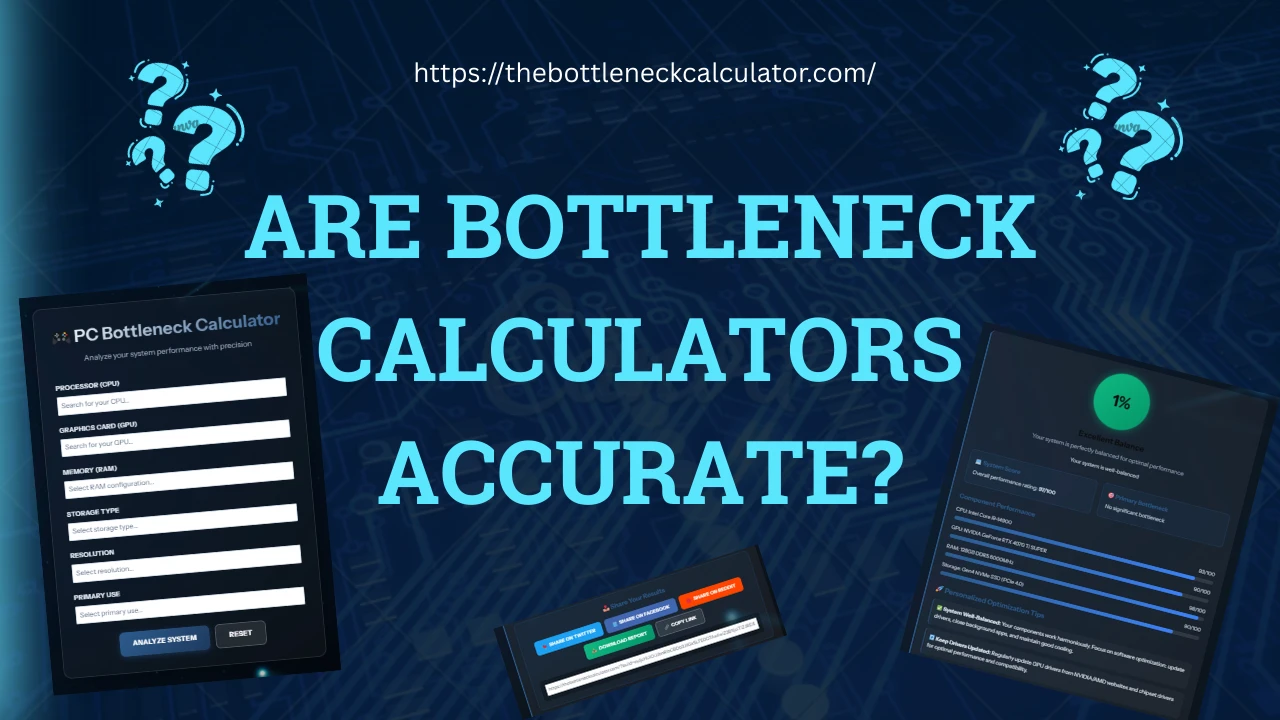
If you want a more complete picture, our bottleneck calculator goes beyond just CPU and GPU. It factors in RAM configuration, resolution, storage type, and different usage scenarios (gaming styles, productivity, and mixed workloads) to reduce guesswork — while still encouraging real-world testing.
Alternatives to Bottleneck Calculators
Manual benchmarks, community testing, and real user data often provide clearer answers.
What PC Enthusiasts and Experts Say About Bottleneck Calculators
Most experienced builders agree: calculators are helpful starting points, but benchmarks and monitoring always tell the real story.
Final Verdict — Should You Trust Bottleneck Calculators?
Use them for direction, not decisions. They help you avoid obvious mistakes — but real performance should always be verified with benchmarks and monitoring tools.
Frequently Asked Questions (FAQs)
What Is a Good Bottleneck Percentage for Your PC?
There is no universal “good” number. Context matters more than percentages.
Do Bottleneck Calculators Consider Resolution?
Some do, but often imperfectly.
Are Bottleneck Calculators Accurate for Gaming?
They’re moderately useful — but never definitive.
Conclusion — How to Use Bottleneck Calculators Wisely
Bottleneck calculators aren’t scams, but they’re not precision tools either. When used alongside real benchmarks and monitoring, they can be genuinely helpful.
Use our Bottleneck Calculator alongside real-world benchmarks to get a clearer, more confident understanding of your PC’s performance.