
Technical Disclosure: Component lifecycle estimates, platform socket upgrade paths, and performance-per-dollar guidelines in this guide are derived from architectural silicon roadmaps (AM4/AM5, Intel LGA 1700/1851), modern game engine hardware telemetry, and multi-source hardware longevity analysis.
Deciding when to upgrade your PC in 2026 is harder than it used to be. With DDR5 memory prices elevated, modern GPUs pushing higher power envelopes, and game engines demanding larger VRAM buffers, blindly swapping parts can waste hundreds of dollars without fixing the actual slowdown.
The smartest upgrades aren’t driven by marketing hype or arbitrary calendar dates—they are driven by identifying which exact subsystem is throttling your daily workflow or frame pacing. Below is an engineering-focused diagnostic framework covering real component lifespans, symptom-to-part troubleshooting, and the exact financial math of upgrading individual parts versus building a new rig.
Unsure whether your processor or graphics card is holding back frame rates? Read our full breakdown on CPU Bottleneck vs GPU Bottleneck.
View: official Windows 11 processor support requirements
Table of Contents
7 Clear Signs Your PC Needs an Upgrade
Modern PCs rarely fail overnight; instead, they gradually fall behind modern software demands. Look for these concrete warning signs before opening your wallet:
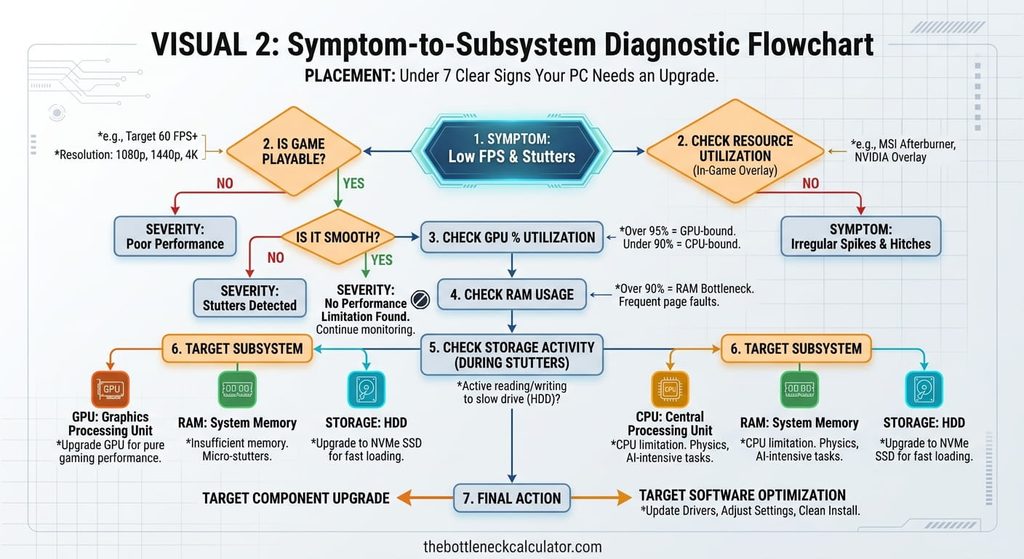
- Frame Rates Drop Below Target at Familiar Settings: If games that used to run smoothly at 1440p High now require dropping to Medium or aggressive upscaling just to hold 60 FPS, your graphics card’s shader or VRAM ceiling is being exceeded.
- Stuttering & Low 1% Lows Despite Decent Average FPS: When your frame counter looks acceptable on paper, yet gameplay hitches during crowded scenes or fast traversal, your CPU’s single-core IPC, L3 cache, or RAM bandwidth is stalling frame delivery.
- Sluggish Multitasking & Browser Slowdowns: Opening a few browser tabs alongside Discord, a game launcher, or creative tools causes noticeable freezes—a classic sign of hitting a 16GB RAM ceiling and triggering slow disk paging.
- Painfully Long Level Loads & Texture Pop-In: Modern games built around DirectStorage and high-speed asset streaming choke on legacy SATA SSDs or mechanical hard drives, causing missing textures and extended loading screens.
- Thermal Throttling & Constant Fan Noise: Fans ramping to 100% under moderate loads or clock speeds dropping mid-session point to dried thermal paste, clogged airflow, or an aging cooler struggling with sustained workloads.
- Hard Shutdowns Under Combined CPU/GPU Load: Sudden power-offs during heavy rendering or gaming spikes signal an aging or under-wattage power supply unit (PSU) tripping its over-current protection.
- Platform & OS Compatibility Walls: Running older pre-2018 hardware (such as Intel 7th-gen or Ryzen 1000 chips) locks you out of official Windows 11 security updates, PCIe 4.0/5.0 lanes, and modern instruction sets.
Quick Symptom-to-Hardware Diagnostic Matrix
Observed System Symptom | Likely Limiting Subsystem | Primary Engineering Cause | Recommended Upgrade Action |
|---|---|---|---|
Low FPS at 1440p / 4K; GPU at 99% | Graphics Card (GPU) | Shader cores or 8GB VRAM buffer saturated | Upgrade GPU (aim for 12GB–16GB+ VRAM) |
Stutters at 1080p; GPU below 80% | Processor (CPU) or RAM | CPU draw-call ceiling or slow single-channel RAM | Drop-in CPU upgrade or enable XMP/EXPO dual-channel |
Freezes when Alt-Tabbing / Multitasking | System Memory (RAM) | Physical RAM exhausted; OS paging to disk | Expand capacity from 16GB to 32GB |
Long boot & game loading screens | Storage Drive | Mechanical HDD or near-full DRAM-less SATA SSD | Clone OS & games to a PCIe 4.0 NVMe SSD |
Random black screens under peak load | Power Supply / Cooling | Transient power spikes or VRM/CPU thermal throttling | Replace PSU (ATX 3.0/3.1) & repaste/upgrade cooler |
Realistic Component Lifespans in 2026
Understanding when to upgrade your PC requires separating physical durability from performance relevance. Silicon rarely wears out from normal use—it simply gets outpaced by newer software:
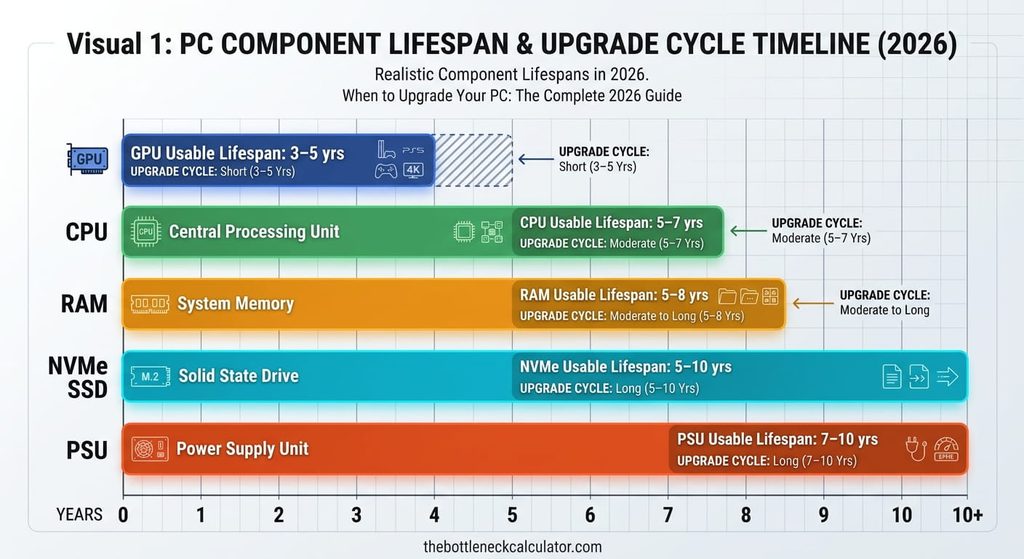
- Graphics Card (3 – 5 Years): The fastest-aging component in a gaming PC. New ray-tracing features, neural rendering pipelines, and rising VRAM requirements push mid-range cards down a tier every two generations.
- Processor / CPU (5 – 7 Years): A well-chosen modern CPU easily survives two GPU upgrade cycles before becoming a severe frame-pacing bottleneck, especially at 1440p and 4K.
- System Memory / RAM (5 – 8 Years): RAM rarely fails physically; you only replace it when hitting capacity ceilings (moving from 16GB to 32GB) or jumping to a new motherboard socket standard (DDR4 to DDR5).
- NVMe Storage (5 – 10 Years): Quality PCIe NVMe drives carry high TBW (Terabytes Written) endurance ratings and usually outlast the rest of the build.
- Power Supply & Case (7 – 10+ Years): Investing in a high-efficiency, high-wattage PSU and an airflow-focused chassis lets you carry both across multiple rebuilds.
Experiencing stutters or heavy disk activity during multitasking? Follow our step-by-step guide on How to Check if My RAM Is Bottlenecking Your PC.
Component-by-Component Upgrade Priorities
When budget is limited, upgrading in the right order prevents you from creating new bottlenecks:
1. Storage & RAM (Highest Dollar-for-Dollar Responsiveness)
If your PC still boots from a SATA SSD or runs 16GB of RAM under heavy multitasking, adding a 1TB–2TB PCIe 4.0 NVMe SSD and stepping up to 32GB of dual-channel RAM delivers the most immediate improvement in daily snappiness for the lowest cost.
2. Graphics Card (Biggest Gaming FPS Impact)
If your CPU still has headroom (such as a Ryzen 5000/7000/9000 or Intel 12th–14th Gen chip), a GPU upgrade provides the largest direct jump in gaming frame rates and visual fidelity. Ensure your target card has at least 12GB to 16GB of VRAM if you play modern AAA titles at 1440p or higher.
3. Processor & Platform (CPU + Motherboard)
Only prioritize a CPU upgrade if telemetry shows low GPU utilization (<80%) paired with erratic 1% low frame times. Before buying a new motherboard and DDR5 kit, check if your existing socket supports a drop-in upgrade—for instance, AM4 owners can jump to a Ryzen 7 5700X/5800X3D with a simple BIOS update, avoiding a costly platform overhaul.
4. Power Supply & Cooling (The Foundation)
Never pair a modern 300W+ graphics card with a decade-old, unrated power supply. If your new GPU requires a native 12V-2×6 cable or pushes total system draw past 75% of your PSU’s rated wattage, upgrade the PSU alongside the card.
Checking if a minor hardware mismatch actually requires spending money? See Is a 5% Bottleneck Bad for Gaming? before buying new parts.
View: PCIe NVMe storage endurance and DirectStorage specs
Upgrading Parts vs. Building a New PC: The 2026 Decision Matrix
Knowing when to upgrade your PC versus starting fresh comes down to platform lock-in. Compare your current socket against this 2026 platform matrix:
Current PC Platform | Best Strategic Move in 2026 | Engineering & Financial Rationale |
|---|---|---|
AMD AM5 (Ryzen 7000 / 9000) | Upgrade Individual Parts | Active socket longevity; supports drop-in X3D CPUs, DDR5, and PCIe 5.0. |
AMD AM4 (Ryzen 3000 / 5000) | GPU Upgrade (or Drop-in 5000X3D) | Avoids high DDR5 platform swap costs while keeping strong 1440p gaming speed. |
Intel LGA 1700 (12th – 14th Gen) | Upgrade GPU (Keep Platform) | Socket is end-of-life, but 12th–14th Gen chips still feed modern GPUs well at 1440p/4K. |
Intel 8th – 11th Gen / Ryzen 1000–2000 | Full New PC Rebuild | Dead sockets, PCIe 3.0 limits, and aging IPC bottleneck any modern mid-to-high-end GPU. |
The 50% Cost Threshold Rule: If upgrading your current machine requires replacing the CPU, motherboard, RAM, and power supply—and the total exceeds 50% to 60% of the cost of a brand-new prebuilt or custom rig—sell your old PC whole and build fresh.
Final Verdict: How to Make the Smartest Call
Ultimately, when to upgrade your PC isn’t dictated by new product launches—it’s dictated by whether your current machine fails to hit your target frame rate, resolution, or project render times. If your games run smoothly, temperatures stay in check, and your system handles daily multitasking without paging to disk, keep your money in the bank. When a real bottleneck does appear, target the single limiting subsystem first rather than overbuilding parts you don’t need.