
Technical Disclosure: Pixel-throughput ratios, CPU draw-call overhead models, and VRAM frame-buffer scaling metrics in this guide are derived from modern graphics API (DirectX 12 / Vulkan) rendering pipelines, GPU memory bandwidth specifications, and multi-source hardware telemetry.
If your frame rates tank after upgrading to a 4K monitor—or if your graphics card sits at 60% utilization on a 1080p screen—it is natural to ask: can screen resolution cause a PC bottleneck on its own?
The precise engineering answer is no—screen resolution does not create a hardware bottleneck out of thin air, but it directly determines which component hits its ceiling first. Because display resolution dictates how many pixels your graphics card must shade per frame, changing your resolution acts like a seesaw that shifts workload pressure back and forth between your processor (CPU) and graphics card (GPU).
Below is a technical breakdown of how 1080p, 1440p, and 4K alter CPU draw-call velocity versus GPU shader and VRAM saturation, along with practical tuning steps to balance your frame pacing.
View: DirectX 12 draw-call execution pipelines
Table of Contents
How Screen Resolution Shifts CPU vs. GPU Workloads
To understand why can screen resolution cause a PC bottleneck is such a common point of confusion, look at what actually happens inside your PC when a single frame is rendered:
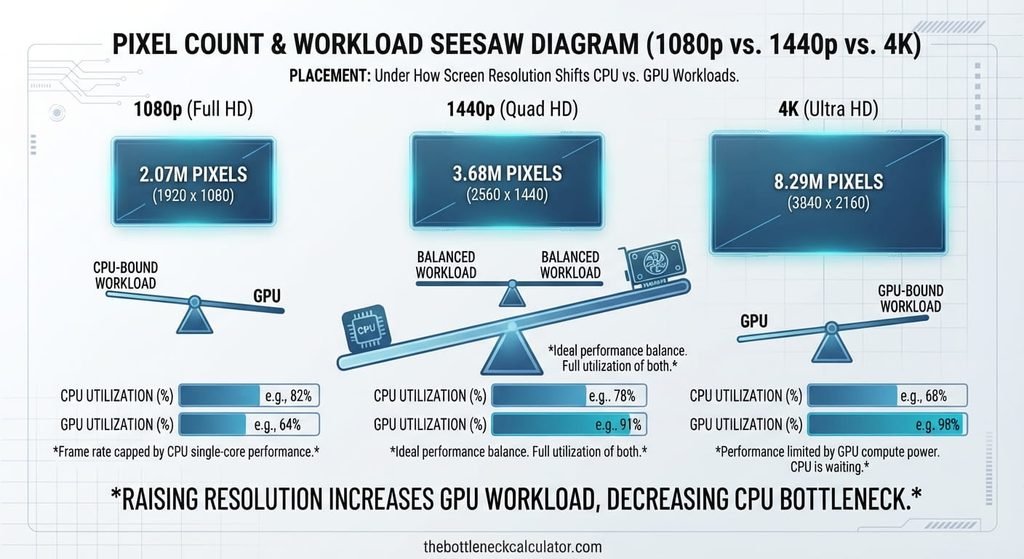
- The CPU’s Job (Resolution-Independent): Your processor calculates game physics, AI behavior, hitboxes, and issues draw calls telling the GPU what objects exist in the scene. Preparing the geometry for a frame at 1080p requires virtually the exact same CPU work as preparing that same frame at 4K.
- The GPU’s Job (Strictly Resolution-Dependent): Your graphics card takes those instructions and shades every individual pixel on screen. Jumping from 1080p (2.07 million pixels) to 1440p (3.68 million pixels) increases pixel workload by 78%, while 4K UHD (8.29 million pixels) demands 4× (400%) more pixel shading than 1080p.
Want a complete side-by-side breakdown of processor versus graphics card symptoms? Read our guide on CPU Bottleneck vs GPU Bottleneck.
Target Resolution | Total Pixels Rendered | Primary Hardware Stress | Typical GPU Utilization | Dominant Bottleneck Behavior |
|---|---|---|---|---|
1080p Full HD (1920×1080) | 2,073,600 (1.0×) | CPU Draw-Call Velocity | 60% – 85% (in high-FPS games) | GPU renders frames so fast that the CPU hits its frame-prep ceiling first. |
1440p Quad HD (2560×1440) | 3,686,400 (1.78×) | Balanced CPU & GPU Load | 92% – 99% | Ideal parity; pixel load slows the GPU just enough to match CPU pacing. |
4K Ultra HD (3840×2160) | 8,294,400 (4.0×) | GPU Shaders & VRAM Bus | 98% – 100% | GPU shading cores and VRAM bandwidth saturate long before the CPU maxes out. |
Resolution Breakdown: 1080p vs. 1440p vs. 4K
1080p Gaming: Exposing CPU & Memory Limits
At 1080p—especially in competitive esports titles like Counter-Strike 2, Valorant, or Fortnite—a modern mid-range or high-end GPU renders frames in just a few milliseconds. Because the GPU finishes early, the processor must continuously feed new draw calls at 200–360+ FPS. Any weakness in CPU single-core clock speed, L3 cache size, or dual-channel RAM bandwidth immediately caps your maximum frame rate.
1440p Gaming: The Balanced Sweet Spot
Quad HD (2560×1440) is widely considered the sweet spot for modern PC builds. The 78% increase in pixel count gives mid-to-high-tier GPUs enough shading work to reach 95%–99% utilization while keeping frame rates high enough for smooth 144Hz–240Hz gameplay.
4K Gaming: GPU Compute & VRAM Capacity Ceilings
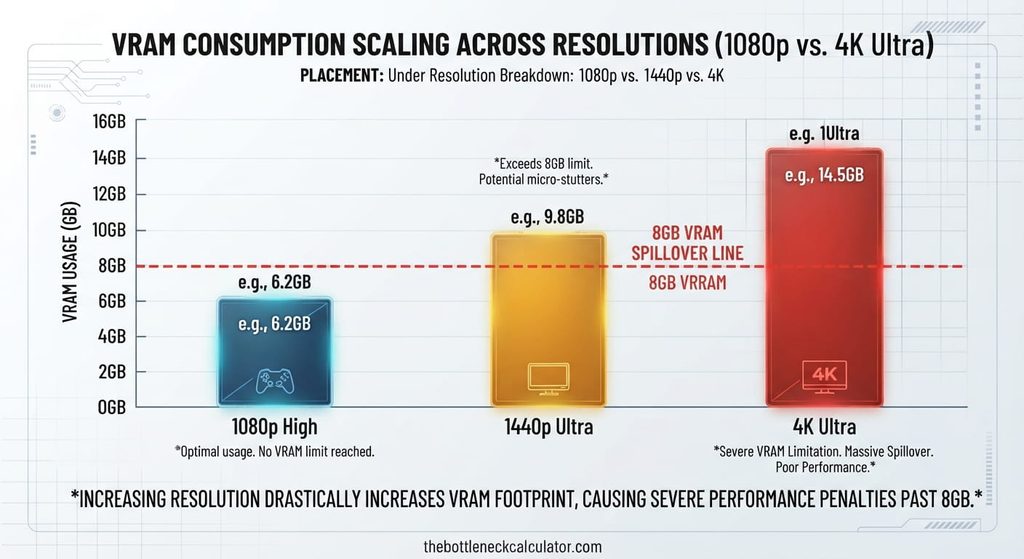
At 3840×2160, almost every gaming system becomes strictly GPU-bound. Beyond raw shader power, 4K dramatically increases VRAM (Video Memory) consumption for high-resolution render targets, frame buffers, and ray-tracing acceleration structures. If your GPU only has 8GB of VRAM, 4K Ultra textures will overflow into system RAM over the PCIe bus, causing severe frame-time stutters.
View: NVIDIA DLSS Super Resolution documentation
Curious how our calculator weights 1080p, 1440p, and 4K differently? Check out How We Calculate Bottleneck Results.
Can a Monitor Itself Cause a Hardware Bottleneck?
A common myth when researching can screen resolution cause a PC bottleneck is that plugging in a specific monitor physically slows down your internal components.
- Resolution vs. Refresh Rate: A monitor never throttles how many frames your PC renders internally. However, a 60Hz monitor can only physically display 60 images per second—meaning if your PC renders 240 FPS, 180 of those frames are discarded visually (creating a display bottleneck rather than a hardware bottleneck).
- Screen Size (24″ vs. 27″ vs. 32″): Physical screen dimensions have zero impact on GPU performance. A 32-inch 1440p monitor renders the exact same 3,686,400 pixels per frame as a 27-inch 1440p monitor at identical frame rates.
Experiencing stutters when textures exceed your GPU or system memory pool? Read How to Check if My RAM Is Bottlenecking Your PC.
4 Practical Ways to Optimize Resolution & Frame Pacing
If your current monitor resolution is exposing either a CPU draw-call ceiling or a GPU rendering bottleneck, apply these targeted adjustments:
- Use AI Upscaling (DLSS, FSR, or XeSS) at 1440p and 4K: Upscalers render the game at a lower internal resolution (e.g., 1440p internal upscaled to 4K) and reconstruct native detail using neural networks, boosting GPU-bound FPS by 30%–50% without sacrificing sharpness.
- Use NVIDIA DLAA or Resolution Scaling at 1080p: If you play on a 1080p monitor and notice your GPU sitting under 75% usage, enable DLAA (Deep Learning Anti-Aliasing) or set internal resolution scaling to 120%–133%. This puts idle GPU cores to work improving image clarity without lowering your CPU-capped frame rate.
- Lower Ray Tracing & Volumetric Effects When GPU-Bound: At 4K, ray-traced reflections and volumetric fog consume massive shader and VRAM budgets. Dropping these two settings from Ultra to High typically recovers 15%–25% FPS with minimal visual difference.
- Test Your Exact Pairing Before Buying a New Monitor: Planning to jump from 1080p to 1440p or 4K? Run your exact processor, graphics card, and target resolution through our PC Bottleneck Calculator to verify whether your GPU has enough VRAM and shader throughput for the higher pixel count.
Final Verdict
So, can screen resolution cause a PC bottleneck? Not directly—it acts as a workload splitter between your CPU and GPU. Low resolutions (1080p) expose CPU and memory speed ceilings in high-FPS games, while high resolutions (4K) push GPU shaders and VRAM capacity to their limits. Matching your monitor’s native resolution and refresh rate to your graphics card’s VRAM tier ensures smooth frame pacing without leaving expensive hardware headroom unused.